COC MANAGE BOOKING AND BL STEP BY STEP-USER MANUAL
COC MANAGE BOOKING AND BL STEP BY STEP-USER MANUAL
Version: V1.0.38.2
Prepared by: Arul Jothi. M
Date: 25/11/2025
––––––––––––––––––––––––––––––––––––––
Table of Contents
-
Introduction
-
System Requirements
-
Logging In
-
COC Manage Booking
4.1 Introduction
4.2 Status Tracker
4.3 Creating a New COC Manage Shipment
4.4 Mandatory & Non-Mandatory Field Details
4.5 Adding Container Details
4.6 Creating the Booking (Draft Stage)
4.7 Updating the Shipping Instruction (SI)
4.8 Navigating BL Draft Print -
Troubleshooting Common Issues
-
Frequently Asked Questions (FAQs)
-
Support
––––––––––––––––––––––––––––––––––––––
1. Introduction
The COC Manage Shipments module enables users to track, update, and manage the complete lifecycle of Container-on-Container (COC) shipments. This includes booking, BL preparation, confirmation, and invoice stages — all from a single consolidated screen.
––––––––––––––––––––––––––––––––––––––
2. System Requirements
Supported Browsers:
• Google Chrome 90+
• Mozilla Firefox 85+
User Access Roles:
Sales, Pricing, or Operations users with access to the COC Manage Booking module.
––––––––––––––––––––––––––––––––––––––
3. Logging In
-
Open ZEALIT 2.0 in your browser.
-
Log in with your assigned credentials.
-
Navigate to COC Manage Booking using the dashboard or the Type to Search bar.
––––––––––––––––––––––––––––––––––––––
4. COC Manage Booking
4.1 Introduction
4.2 Status Tracker
The module displays shipments under multiple workflow buckets:
-
Pending Booking
-
Pending BL Confirm
-
Confirmed BL
-
Pending Invoice BL
Each shipment card shows:
• Reference Booking No
• Liner BL No
• BL Type
• POL / POD
• Vessel / Voyage
• Equipment Type
4.3 Creating a New COC Manage Shipment
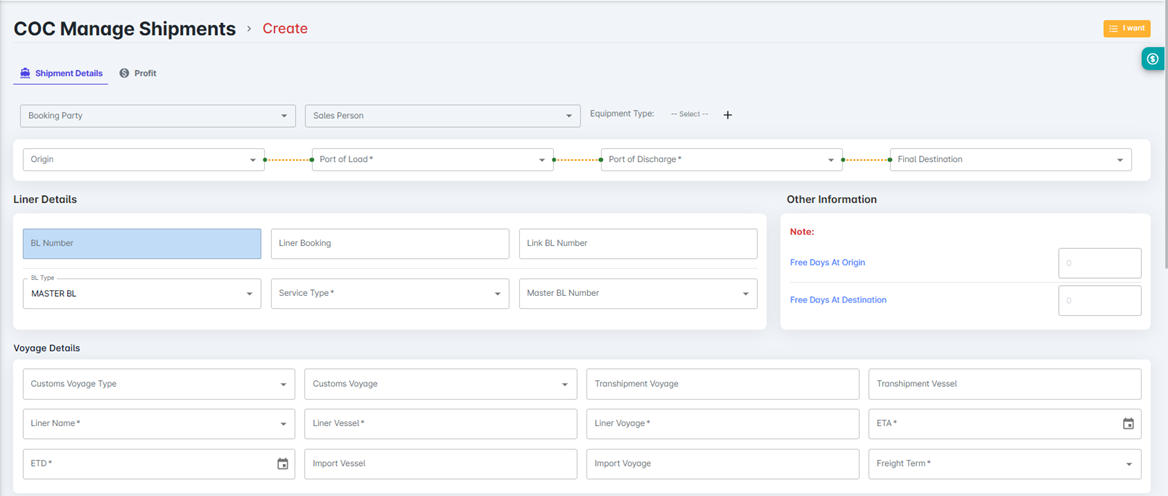
Click Create New to open the transaction screen and start entering shipment details.
4.4 Mandatory & Non-Mandatory Field Details
For making The New COC Manage Shipment need to fill
the mandatory details which are make for the shipments.
|
Field Name |
Mandatory |
Example Value |
|
Booking Party |
No |
ABC Logistics Pvt Ltd |
|
Sales Person |
No |
John Mathew |
|
Equipment Type |
No |
40HC |
|
Origin |
No |
INMAA – Chennai |
|
Port of Load (POL) |
Yes |
INNSA – Nhava Sheva |
|
Port of Discharge (POD) |
Yes |
LKCMB – Colombo |
|
Final Destination |
No |
LKHRP – Horana |
|
Field Name |
Mandatory |
Example Value |
|
BL Number |
No |
EGLV1005532134 |
|
Liner Booking |
No |
LBK2025-001234 |
|
Link BL Number |
No |
HBL2025-77889 |
|
BL Type |
No (Default: MASTER BL) |
MASTER BL |
|
Service Type |
Yes |
FCL / LCL / COC (e.g., FCL) |
|
Master BL Number |
No |
MBL99887766 |
3. Other Information
|
Field Name |
Mandatory |
Example Value |
|
Free Days at Origin |
No |
7 |
|
Free Days at Destination |
No |
5 |
|
Field Name |
Mandatory |
Example Value |
|
Customs Voyage Type |
No |
Main Voyage |
|
Customs Voyage |
No |
VOY-5567 |
|
Transshipment Voyage |
No |
TRS-8877 |
|
Transshipment Vessel |
No |
MAERSK HORIZON |
|
Liner Name |
Yes |
Evergreen Line |
|
Liner Vessel |
Yes |
EVER GENTLE |
|
Liner Voyage |
Yes |
EG1234 |
|
ETA |
Yes |
25-Feb-2025 |
|
ETD |
Yes |
20-Feb-2025 |
|
Import Vessel |
No |
MSC ARIANE |
|
Import Voyage |
No |
MS1230 |
|
Freight Term |
Yes |
PREPAID / COLLECT |
|
Field Name |
Mandatory |
Example Value |
|
Shipper |
Yes |
ABC INDUSTRIES PVT LTD |
|
Consignee |
Yes |
GLOBAL TRADERS LLC |
|
Notify 1 |
No |
OCEAN LOGISTICS LTD |
|
Field Name |
Mandatory |
Example Value |
|
Booking Agent |
Yes (Auto populated) |
DPL-BOR / COLOMBO |
|
Destination Agent |
No |
DPL-CMB (Colombo) |
|
Field Name |
Mandatory |
Example Value |
|
Cargo Description |
No |
PLASTIC GRANULES |
|
Marks and Numbers |
No |
ABC123 / CARTON 1–50 |
|
Comments |
No |
URGENT SHIPMENT – HANDLE WITH CARE |
|
Field Name |
Mandatory |
Example Value |
|
Container No |
Yes (When adding container) |
MSKU1234567 |
|
Container Type |
Yes (When adding container) |
40HC |
|
Harmonized Code |
No |
39021000 (Polymers of Ethylene) |
|
Hazardous |
No |
NON-HAZ / HAZ (UN1993) |
|
Attachment |
No |
Invoice.pdf, PackingList.pdf |
|
Notes |
No |
Seal verified |
|
Field Name |
Mandatory |
Example Value |
|
Container No |
Yes |
MSKU1234567 |
|
Container Size Type |
Yes |
20GP / 40HC |
4.5 Adding Container Details
-
Go to Container & Cargo Information tab.
-
Click Edit.
-
Enter both mandatory fields:
✔ Container Number
✔ Container Size Type -
Click Save.
4.6 Creating the Booking (Draft Stage)
Once all details are filled, click Create.
The booking enters Draft Status with an auto-generated System Booking Number.
4.7 Updating the Shipping Instruction (SI)
For Making the Bl Shipping Instruction we need to
click on the I want Button in that button we have Shipping Instruction
column to Update that values.
-
Click I Want → Shipping Instruction.
-
Select Create New Shipping Instruction.
-
System pre-fills all BL values.
-
Click Get BL to fetch BL-linked details.
SI Type – Dropdown Options
|
SI Type |
Description (Simple Explanation) |
|
MAIN BL |
The primary Master BL issued by the carrier. |
|
HOUSE BL |
BL issued by the forwarder to the shipper. |
|
PART BL |
Used when a shipment is split into multiple BLs. |
|
SWITCH BL |
A modified BL issued to change shipper/consignee details. |
|
IMPORT CUSTOMS |
Used for import-specific customs documentation. |
4.8 BL Draft Print
-
Click Print on the booking.
-
Choose BL Draft.
-
Multiple draft prints can be taken while booking remains in Draft.
––––––––––––––––––––––––––––––––––––––
5. Troubleshooting Common Issues
| Issue | Suggested Solution |
|---|---|
| Create New button not visible | Check access permissions |
| BL details missing | Ensure mandatory fields are filled |
| Cannot confirm BL | Verify SI submission and BL details |
| Print not downloading | Ensure booking remains in Draft/Correct stage |
––––––––––––––––––––––––––––––––––––––
6. Frequently Asked Questions (FAQs)
Q1: Can I edit booking details after BL confirmation?
A: No — editing is locked once the BL is confirmed.
Q2: Can I attach documents before confirming the booking?
A: Yes, all attachments can be added during Draft stage.
Q3: Where can I find confirmed BLs?
A: Under Pending Invoice BL status bucket.
Q4: Can I print BL drafts multiple times?
A: Yes, unlimited draft prints are allowed before BL confirmation.
––––––––––––––––––––––––––––––––––––––
7. Support
––––––––––––––––––––––––––––––––––––––
Related Articles
COC MANAGE BOOKING AND BL STEP BY STEP-USER MANUAL
COC MANAGE BOOKING AND BL STEP BY STEP-USER MANUAL Version: V1.0.38.2 Prepared by: Arul Jothi. M Date: 25/11/2025 –––––––––––––––––––––––––––––––––––––– Table of Contents Introduction System Requirements Logging In COC Manage Booking 4.1 ...COC MANAGE BOOKING AND BL STEP BY STEP-USER MANUAL - 2go
COC MANAGE BOOKING AND BL STEP BY STEP-USER MANUAL Table of Contents Introduction System Requirements Logging In COC Manage Booking 4.1 Introduction 4.2 Status Tracker 4.3 Creating a New COC Manage Shipment 4.4 Mandatory & Non-Mandatory Field ...BL INVOICE BY ACCOUNTING DETAILS (DIRECT INVOICING METHOD)
L INVOICE BY ACCOUNTING DETAILS (DIRECT INVOICING METHOD) Common INVOICE FOR EXACT BL NUMBER – USER MANUAL Version: V1.0.37.4 Prepared by: Arul Jothi. M Date: 12/11/2025 Table of Contents Introduction System Requirements Logging In BL Invoice • BL ...COC BL Charge Corrector – User Manual
COC BL Charge Corrector – User Manual Version: V1.0.37.4 Prepared by: Arul Jothi M Date: 12/11/2025 1. Introduction The COC Charge Corrector module in ZEALIT 2.0 allows users to modify or update charges (Rate and Cost) even after a booking has been ...JOB CREATION SCREEN (AIR) – USER MANUAL
JOB CREATION SCREEN (AIR) – USER MANUAL Version: V1.0.37.4 Prepared by: Arul Jothi. M Date: 14/11/2025 Table of Contents Introduction System Requirements Logging In Main Features and Functions 4.1 Creating a New Job 4.2 Editing Job Details 4.3 ...